LinkedIn Post Formatter 2026: Format Posts for Maximum Engagement
Published Nov 26, 2025 | Last updated: September 2026 | 8 min read | Aditi Garsa
This article contains an affiliate link. If you sign up through it, we may earn a commission at no extra cost to you. Read our affiliate disclosure.
Quick Verdict
To add bold, italic, or styled text to LinkedIn posts, use a free LinkedIn post formatter tool. Formatters convert your text into Unicode characters that render as styled text in the feed because LinkedIn has no native bold or italic. The result: visually distinct posts that stop the scroll, with one important rule: format plain words only, never hashtags or mentions.
Compare the posts that stop you in your own LinkedIn feed with the ones you scroll past, and a pattern tends to show up: the difference is often visual structure rather than topic. Posts that are easy to read usually have a one-line hook, deliberate line breaks every 1-2 sentences, and a single call-to-action at the bottom. Posts that get skipped are often solid paragraph blocks.
LinkedIn's algorithm rewards dwell time, and dwell time tracks readability. People engage more with posts that are easy to scan, visually structured, and don't read as a wall of text. Formatted posts get read; unformatted posts get scrolled past.
The constraint: LinkedIn doesn't support native markdown or HTML in posts. No bold button, no italic option. Which is exactly why LinkedIn post formatters exist, and exactly why this guide walks through how to use one without making the common mistakes that quietly tank reach.
Why LinkedIn Post Formatting Matters
LinkedIn's feed is competitive. At any given moment, someone scrolling their feed is deciding in under two seconds whether your post is worth reading. Formatting is how you win that decision.
Here's what formatting actually does for your posts:
Visual differentiation
Bold text, symbols, and line breaks make your post look distinct in a feed full of paragraph blocks.
Stops the scroll
White space and short lines create visual patterns that interrupt the auto-scroll reflex.
Easier to read
Short paragraphs, bullets, and headers reduce cognitive load, readers absorb formatted content faster.
Algorithm signal
Higher dwell time and engagement rate signal relevance to LinkedIn's algorithm, increasing distribution.
How LinkedIn Post Formatters Work
LinkedIn's post editor is a plain text field. It doesn't process markdown (no **bold**, no _italics_) and it doesn't render HTML. So how do formatted LinkedIn posts exist at all?
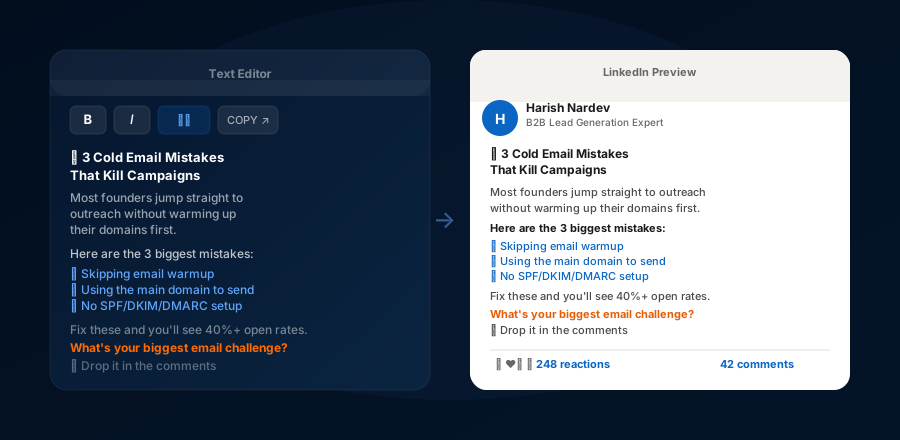
The answer is Unicode. The Unicode character set includes multiple "styles" of the same alphabet, characters that visually look like bold, italic, script, or monospace fonts even though they're technically just different Unicode letters. When you paste these characters into LinkedIn's text field, LinkedIn renders them as-is, and they look like formatted text to the reader.
A LinkedIn post formatter is simply a converter: you type your text, select a style (bold, italic, sans-serif bold, etc.), and the tool outputs the equivalent Unicode characters that you paste into LinkedIn. No plugins, no browser extensions required.
How to Use Our Free LinkedIn Post Formatter
Open the formatter tool
Go to the free LinkedIn Post Formatter on MarketingToolsProHub. No account, no signup, just open and use. Works in any browser on desktop or mobile.
Type or paste your post
Write your post content in the input field, or paste text you've already drafted. Write it naturally first, then apply formatting as a second step. Don't format while writing; it breaks your flow.
Select the text to format
Highlight specific words or phrases you want to style. Common choices: bold your opening hook line, bold key stats or claims, italicize quotes or emphasis phrases.
Apply formatting and copy
Click the Bold, Italic, or other formatting buttons to convert your selected text. Once you're happy with the result, click "Copy to Clipboard."
Paste directly into LinkedIn
Open LinkedIn, start a new post, and paste (Ctrl+V / Cmd+V). The formatted Unicode characters will paste exactly as styled, no extra steps, no plugins needed. Preview and post.
Types of LinkedIn Post Formatting Available
| Format type | What it looks like | Best used for |
|---|---|---|
| Bold | 𝐁𝐨𝐥𝐝 𝐬𝐞𝐫𝐢𝐟 𝐭𝐞𝐱𝐭 | Opening hooks, key stats, section headers |
| Italic | 𝘐𝘵𝘢𝘭𝘪𝘤 𝘴𝘢𝘯𝘴 𝘵𝘦𝘹𝘵 | Quotes, subtle emphasis, titles |
| Symbols / Bullets | ▪ → ✓ ➜ • ◆ | List items, action steps, highlights |
| Line breaks | white-space hooks | Creating breathing room, building curiosity |
| Emojis | 🔥 💡 ✅ 🎯 | Visual accent, emotional tone, CTA markers |
LinkedIn Post Formatting Best Practices
- Use one blank line between every paragraph. Single-line spacing after each sentence creates white space that makes posts feel breathable and easy to scan.
- Keep paragraphs 1–3 lines maximum. LinkedIn is mobile-first. Long paragraphs that work in a blog collapse into unreadable slabs on a phone screen.
- Bold selectively, not everything. Bold works because it creates contrast. If every word is bold, nothing stands out. Reserve bold for the 2–3 most important phrases per post.
- Use bullet symbols for lists. LinkedIn doesn't have a native bullet point. Use ▪, →, or ✓ from the formatter to create clean visual lists.
- End with a question or CTA. Comment sections drive reach. End every post with a question, a soft CTA, or a prompt that invites response.
- Don't over-emoji. One emoji per section maximum. Multiple emojis per line signals low-quality content to professional audiences.
Before vs After: Formatting in Action
Before (Unformatted)
Illustrative example, replace the details with your own. Cold email doesn't work anymore. I used to think that too. But last quarter we booked [X] clients using nothing but a 4-email sequence. Here's what we did differently: we stopped selling in the first email. We stopped using templates everyone has seen. We personalized the opening line for every prospect. And we followed up exactly 5 days later. Reply rate: [X]%. Meeting booked rate: [Y]%. Worth trying.
After (Formatted)
Illustrative example, replace the details with your own.
Cold email doesn't work anymore.
I used to think that too.
But last quarter we booked [X] clients using nothing but a 4-email sequence.
Here's what we did differently:
→ Stopped selling in Email 1
→ Stopped using templates everyone recognizes
→ Personalized the opening line for every prospect
→ Followed up exactly 5 days later
Result: [X]% reply rate. [Y]% meeting rate.
Worth trying?
Same content. Same information. The formatted version is visually structured, creates natural pause points, and ends with a question that invites engagement. The unformatted version is a paragraph most people scroll past in under a second.
Add this to your editorial checklist
LinkedIn post formatting is one of the highest-leverage, lowest-effort improvements you can make to your LinkedIn content. An extra 60 seconds with a formatter tool can make posts easier to read, which can help engagement, especially if you format plain words at the end of the writing process, not hashtags or every sentence as you draft. Use our free tool, format your next post, and compare results.
Format Your Post Now (Free) →