How to Use Pipedrive in 2026: Complete Setup Guide for Sales Teams
Pipedrive is easy to start and easy to set up wrong, and the wrong setup is invisible until you've poured three months of deals into it. The order you do things in matters more than any single feature: build the structure, then import the data, then automate, in that sequence. Do it backwards and you re-import contacts and re-stage deals by hand. This guide walks the setup in the order that means you only do it once.
Quick verdict: Set Pipedrive up in this order: pipeline stages, custom fields, email sync, contact import, then automations. Define each stage by a buyer milestone (not an internal action), and your CRM runs follow-ups on near-autopilot without needing a rebuild three months in.
Step 1: Account Setup and Initial Configuration
When you first open Pipedrive, it walks you through a brief onboarding flow. Don't rush this, the choices you make here determine your pipeline structure. Here's what to configure first:
Set Your Company Details
Go to Settings → Company Settings. Add your company name, timezone, and currency. Set your fiscal year start month if you track quarterly performance. This affects how reports and goals display.
Connect Your Email
Go to Settings → Email Sync. Connect Gmail or Outlook. On Essential you get one-way sync (sent emails log to deals). On Advanced and above you get two-way sync (replies from prospects auto-log too). This is the most important setup step, without it, you're manually logging everything.
Configure Your Calendar
Connect Google Calendar or Outlook Calendar in Settings → Integrations. Meetings you schedule from Pipedrive will appear in your calendar, and calendar events will log as activities in deals. Set your availability for the meeting scheduler here too.
Invite Team Members
Go to Settings → Users → Add User. Assign roles (Admin vs Regular user). Each user connects their own email for syncing, this is per-user, not shared. Define team visibility settings if you want reps to only see their own deals.
Step 2: Build Your Pipeline Stages
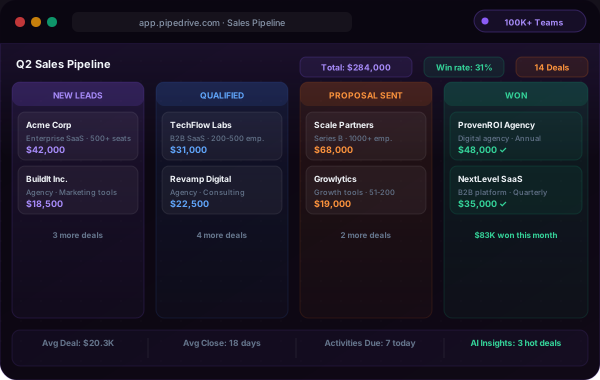
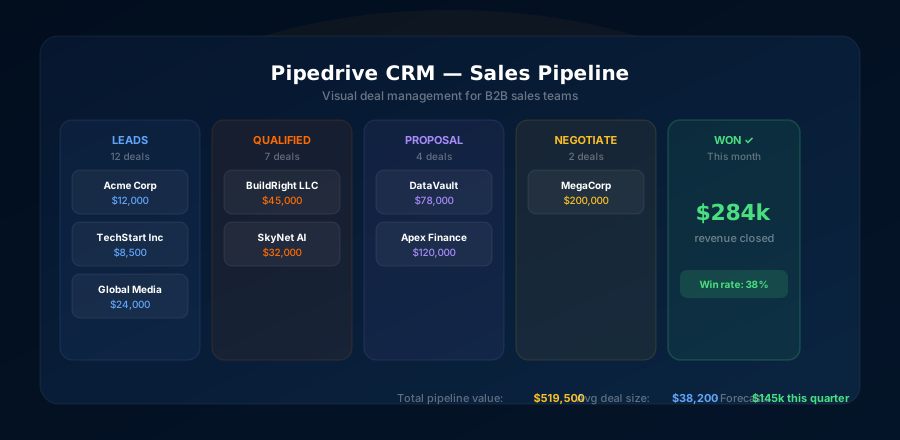
This is the most important configuration decision. Your pipeline stages should mirror your actual sales process, not a generic template. The default stages (Qualified → Contact Made → Demo Scheduled → Proposal Sent → Negotiations Started) work, but most teams customize them.
Example Pipeline for Outbound B2B Sales
| Stage | Definition | Typical activity |
|---|---|---|
| 1. Prospect | Lead identified, not yet contacted | Research, verify email |
| 2. Contacted | First email or call sent | Sequence enrolled |
| 3. Engaged | Replied, showed interest | Discovery call booked |
| 4. Discovery Done | Needs identified, qualifying | Demo or proposal prep |
| 5. Proposal Sent | Pricing / scope delivered | Follow-up, objection handling |
| 6. Negotiation | Active deal discussion | Legal, pricing finalization |
| 7. Won / Lost | Deal closed (either direction) | Handoff or post-mortem |
To edit stages: click the gear icon on any pipeline in the Deals view → Edit pipeline. Drag stages to reorder. Set a "Probability %" on each stage, this powers revenue forecasting.
Step 3: Import Contacts and Deals
You have three options for getting contacts into Pipedrive: manual entry, CSV import, or via integrations (Apollo.io, LinkedIn, etc.).
Importing via CSV (recommended for bulk)
Prepare Your CSV
Create columns for: First Name, Last Name, Email, Phone, Company, Job Title, and any custom fields (e.g., ICP Score, Lead Source). One row per contact. Make sure emails are valid, Pipedrive doesn't deduplicate automatically.
Go to Contacts → Import Data
Select "Import from spreadsheet." Upload your CSV. Pipedrive shows a mapping screen where you match your column headers to Pipedrive fields. Map carefully, unmapped columns are ignored.
Check for Duplicates
After import, go to Contacts → Duplicate contacts. Pipedrive will flag contacts with matching names or emails. Merge duplicates before building sequences, sending two emails to the same person is a quick way to damage your sender reputation.
Create Deals from Contacts
Open any contact, click "Add deal." Assign the deal to a pipeline stage, set an expected close date, and enter the deal value. Alternatively, import deals separately via their own CSV with a "contact person" column to link them.
Step 4: Set Up Email Sequences (Advanced Plan+)
Email sequences are Pipedrive's most powerful time-saving feature. Set up a sequence once, enroll a batch of contacts, and Pipedrive handles all the follow-ups automatically, pausing when someone replies.
Create a New Sequence
Go to Campaigns (left sidebar) → Email sequences → Create sequence. Name it by campaign type (e.g., "Cold Outreach, SaaS Founders"). Set the sending account (the email address you synced).
Add Email Steps
Click "Add step." Write your first email. Subject line, body with personalization tokens like {{person.name}}, {{organization.name}}, {{deal.title}}. Set the delay for step 2 (e.g., 3 days after step 1). Repeat for all follow-up emails. A standard 4-step sequence: Day 1 → Day 4 → Day 8 → Day 14.
Configure Stop Conditions
Set the sequence to stop automatically when a prospect replies. This prevents embarrassing follow-ups to people who've already responded. Also set a daily sending limit (recommended: max 100 emails/day per inbox to protect deliverability).
Enroll Contacts
Go to Contacts, filter by the segment you want to target, select all, click "Enroll in sequence," and choose your sequence. Alternatively, build a workflow automation that auto-enrolls new contacts in a specific pipeline stage.
Step 5: Build Workflow Automations
Workflow automations in Pipedrive are triggered by deal or contact events and can automatically create activities, send emails, move deals, or notify team members. Here are the automations every sales team should set up from day one:
Auto Follow-Up Activity
Trigger: Deal moves to "Proposal Sent." Action: Create a "Follow up" activity 3 days later, assigned to deal owner. Never let a proposal go cold.
Win Notification
Trigger: Deal marked as "Won." Action: Send internal Slack message (via integration) or email to sales manager. Keep the team energy high.
Rotting Deal Alert
Trigger: Deal hasn't been updated in 7 days. Action: Assign a "Check in with lead" activity to the deal owner. Deals that rot die quietly, this prevents it.
New Deal Welcome
Trigger: New deal created in "Prospect" stage. Action: Create initial research activity. Sets a standard starting point for every new deal.
To build automations: Go to Settings → Workflow automation → Create workflow. Choose your trigger (deal stage change, activity added, etc.), set conditions, then add actions. Automations run in the cloud, they fire even when you're offline.
Step 6: Use the Meeting Scheduler
Pipedrive's meeting scheduler is a built-in alternative to Calendly. Set your availability, customize your booking page, and share a link with prospects. When they book, it creates an activity in the related deal automatically.
To set up: Go to Activities → Scheduler → Configure availability. Set your buffer time between meetings, minimum notice period, and which days/hours you're bookable. Then go to any deal or contact and click "Share scheduler link" in the email compose window.
Step 7: Set Up Your Reporting Dashboard
Pipedrive's reports give you visibility into pipeline health, rep activity, and conversion rates. The most useful reports to configure from day one:
| Report | What it shows | Cadence |
|---|---|---|
| Pipeline progress | Total deal value per stage, movement over time | Weekly |
| Won / Lost deals | Revenue won, loss-reason breakdown | Weekly |
| Activities completed | Calls, emails, meetings per rep | Daily |
| Revenue forecast | Probability-weighted expected revenue | Monthly · Pro+ |
| Conversion by stage | Where deals are dropping off | Monthly |
To access: Click the Reports icon in the left sidebar. On Professional and above you can build custom report dashboards. On Advanced, you get pre-built reports that cover most needs.
Bonus: Connecting Pipedrive with Apollo.io
For B2B sales teams doing outbound, pairing Pipedrive with Apollo.io creates a powerful end-to-end system: Apollo handles prospecting and initial email sequences, Pipedrive handles pipeline management and follow-up after a lead responds.
Enable the Apollo → Pipedrive Integration
In Apollo: go to Settings → Integrations → Pipedrive → Connect. Authenticate with your Pipedrive account. Choose what to sync: contacts, deals, and activity history.
Push Engaged Leads to Pipedrive
In Apollo, when a lead replies to your sequence or books a call, push them to Pipedrive automatically. Set up the mapping: Apollo contact → Pipedrive person, Apollo account → Pipedrive organization, trigger a new deal in your "Engaged" stage.
Take Over in Pipedrive
Once a lead is in Pipedrive at the "Engaged" stage, your Pipedrive workflows take over: booking the discovery call, sending the proposal, tracking the deal to close. Apollo's job is done, Pipedrive closes the deal.
5 Pipedrive Power Tips Most Reps Don't Know
Smart Email BCC
Every Pipedrive account gets a unique BCC address. Add it to any email you send from outside Pipedrive and that email will auto-log to the matching contact's deal. Useful for emails sent via phone or other clients.
Saved Filters as Daily Dashboards
Create saved filters in Deals for "My deals with activity due today" and "Deals with no activity in 5+ days." Pin them in the sidebar. These become your daily work queue without building a full dashboard.
Rotting Days by Stage
Set different rotting periods per stage. Proposals can sit for 14 days; Discovery Done should follow up within 5 days. Pipedrive highlights rotted deals in red, configure the thresholds so this warning is actually meaningful.
Email Templates Library
Build a shared template library in Settings → Email templates. Create templates for common scenarios: intro email, demo follow-up, proposal email, check-in. Any rep can use them from any deal's email compose window.
When I onboard a sales team onto Pipedrive, the hardest habit to install isn't a feature, it's logging the activity that didn't lead anywhere. Reps happily log the call that booked a demo and quietly skip the three that went to voicemail. Six weeks later the pipeline reports are useless because the activity data only captures wins, and the manager can't tell a rep who's working hard from one who got lucky. The reframe that finally sticks: the CRM isn't a trophy case, it's a flight recorder. Log the voicemails. The whole point of a structured pipeline is that it tells you the truth about effort and outcome, and it can only do that if the unglamorous activities go in too. A team that logs everything for two weeks straight stops asking me whether Pipedrive is "worth it."
Getting the Most Out of Pipedrive
The teams that get the best results from Pipedrive share a few habits: they log every activity (even quick calls), they keep deal values updated so forecasts mean something, and they actually use the automation features instead of manually doing repetitive tasks.
If you're pairing Pipedrive with a cold email tool, warm your inboxes with Mailreach before running any outreach sequences. Deliverability problems upstream of Pipedrive will tank your reply rates before the CRM even has a chance to help.
Start Building Your Pipedrive Setup
A properly configured Pipedrive on the Advanced plan runs most of your follow-ups automatically and gives you a clear view of every deal in your pipeline. Start the 14-day trial, follow this guide, and you'll be up and running same day.