How to Use Mailreach in 2026: Complete Email Warmup Setup Guide
Every time I teach this setup, the same thing trips people up: it's not hard, it's sequential, and skipping a step quietly breaks a later one. Connect an inbox before the DNS records exist and the first week of warmup is wasted. Launch a campaign before the score hits 85% and you undo two weeks of progress. This guide walks the steps in the exact order that prevents those silent failures, from zero reputation to 90%+ inbox placement.

Quick verdict: Set up domains and DNS records first, connect inboxes to Mailreach, warm all of them simultaneously for 3–4 weeks, and don't send a single cold email until the score crosses 85%. Do it in that order and a brand-new domain reaches 90%+ inbox placement; do it out of order and you waste the first two weeks.
Why You Can't Skip Email Warmup
New email accounts and domains have zero sending reputation. Email providers like Gmail, Outlook, and Yahoo use sender reputation as a primary spam filter signal. When a new inbox suddenly sends 200 cold emails in a day, every filter in the chain sees that as suspicious behavior, and flags it accordingly.
Warmup solves this by gradually building your inbox's reputation before you send campaigns. The warmup tool sends emails from your account to a network of real inboxes, which open them, reply to them, and move them out of spam. This pattern of positive engagement tells email providers: this is a legitimate, active sender. By the time you launch your first campaign, your inbox has weeks of healthy sending history behind it.
Step 1: Create Your Mailreach Account
Sign Up and Select a Plan
Go to Mailreach.co and sign up. Choose a plan based on how many inboxes you're warming up. The Starter plan covers 1 inbox, but most serious cold emailers run 3–10 sending accounts, so the Growth plan (up to 5 inboxes) or above makes more sense from day one.
Set Up Your Sending Domain First
Before connecting to Mailreach, set up your sending domain correctly. This means: SPF record, DKIM, and DMARC all configured in your domain DNS. Without these three records set up, no warmup tool can rescue your deliverability. Check with MXToolbox if you're unsure.
Verify DNS Records
- SPF: Authorizes your sending server to send email on behalf of your domain
- DKIM: Adds a digital signature verifying the email wasn't tampered with
- DMARC: Tells receiving servers what to do with emails that fail SPF/DKIM
These are non-negotiable. Google and Yahoo made SPF + DKIM + DMARC mandatory for bulk senders in 2024. Without them, your emails will be rejected outright.
Step 2: Connect Your Email Inbox
Mailreach supports Gmail (Google Workspace), Outlook (Microsoft 365), and custom IMAP/SMTP providers. Here's how to connect each:
Connecting Gmail / Google Workspace
Enable IMAP in Gmail Settings
In Gmail → Settings → See all settings → Forwarding and POP/IMAP → Enable IMAP. This is required for Mailreach to access the inbox.
Connect via OAuth in Mailreach
In Mailreach dashboard → Add inbox → Google Workspace → Sign in with Google. Select the sending account. Grant Mailreach permission to read and send emails. OAuth is more secure than entering passwords directly.
Verify the Connection
Mailreach will send a test email to confirm the connection works. You'll see the inbox appear in your dashboard with a "Connected" status and an initial deliverability score (usually in the 30–50 range for brand new inboxes).
Connecting Outlook / Microsoft 365
In Mailreach → Add inbox → Microsoft → Sign in with Microsoft account. Grant permissions. Mailreach will request access to your inbox for sending and reading warmup emails. The process is nearly identical to Gmail, OAuth-based, takes 2 minutes.
Connecting Custom SMTP/IMAP
For other email providers: go to Add inbox → Custom SMTP/IMAP. Enter your SMTP server, port (587 for TLS, 465 for SSL), username, and password. Then enter your IMAP server details for reading. This works with any provider that supports standard protocols (Zoho Mail, Namecheap, GoDaddy Email, etc.).
Step 3: Configure Warmup Settings
Once connected, you'll configure the warmup parameters. The defaults work well for most users, but here's what each setting controls:
| Setting | Recommended value | Why |
|---|---|---|
| Daily warmup emails | Start at 3 · auto-ramp | Gradual ramp mirrors organic inbox growth |
| Sending schedule | Weekdays · 8am–6pm | Mimics human behavior; spam tools often send 24/7 |
| Reply rate | Automatic | Natural reply rates signal healthy two-way communication |
| Mark as important | Enable | Boosts sender score faster |
| Move out of spam | Enable | Actively rescuing emails from spam is the core warmup signal |
| Warmup language | Match audience's language | Consistency in language signals legitimacy |
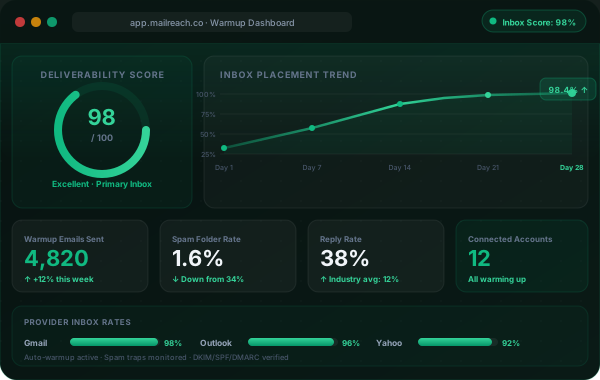
Step 4: Reading Your Deliverability Dashboard
The Mailreach dashboard is your real-time view into inbox health. Here's what each metric means:
Inbox Placement Score
The headline number, what percentage of your warmup emails land in the primary inbox (not spam, not promotions). Target: 85%+. Start campaigns when you hit this threshold.
Spam Rate
Percentage of warmup emails landing in spam. Should trend toward 0% over the warmup period. A spike here often means a DNS misconfiguration or your domain hit a blacklist.
Reputation Score
Overall sender reputation on a 0–100 scale. This combines inbox placement, spam rate, reply rate, and engagement signals. 90+ is excellent, 70–89 is good, below 70 needs attention.
Daily Volume
How many warmup emails are being sent per day. This should gradually increase over the warmup period. If it's not increasing, check the warmup is still enabled and the connection is active.
Score Interpretation
| Score range | Status | Action |
|---|---|---|
| 0–59 | Critical · severe spam issues | Stop all campaigns · audit DNS · check blacklists |
| 60–74 | Poor · significant spam landing | Continue warmup · don't start campaigns yet |
| 75–84 | Acceptable · minor issues | Low-volume campaigns OK · continue warmup |
| 85–100 | Excellent · ready to campaign | Launch campaigns · keep warmup running |
Step 5: Run Spam Tests Before Launching
Before sending your first campaign, run Mailreach's spam test feature. This sends your actual email copy to a test network and shows you exactly where it lands, primary inbox, promotions, or spam, across different email providers (Gmail, Outlook, Yahoo, etc.).
Access Spam Testing
In Mailreach dashboard → Spam Tests → Create new test. You'll get a list of seed email addresses.
Send Your Email Copy to the Seeds
Send your actual campaign email (subject line + body) from your sending inbox to all the seed addresses. Use exactly the copy you plan to send to real prospects, this tests the actual content, not just the inbox reputation.
Read the Results
Mailreach shows inbox, promotions, and spam placement per email provider. If Gmail shows 90% inbox but Outlook shows 30% inbox, you have a provider-specific issue. If across-the-board spam rates are high, your content likely has spam trigger words, revise the copy and retest.
Step 6: Ongoing Warmup Maintenance
Email warmup isn't a one-time task, it's ongoing infrastructure. Here's the maintenance routine that keeps your inboxes healthy long-term:
Weekly Score Check
Every Monday, check your Mailreach scores. Any inbox below 80% while running campaigns gets investigated immediately, don't let it slide.
Never Stop Warmup
Keep warmup running permanently, even at reduced volume during campaigns. Turning off warmup causes score decay within 2–3 weeks. The cost is negligible; the protection is real.
Monitor Bounce Rates
If your campaign bounce rate exceeds 3%, pause immediately. High bounces damage reputation faster than anything else. Verify your list with Apollo or NeverBounce before sending.
Rotate Inboxes
Add new inboxes every 4–6 months as backups. Old inboxes accumulate spam reports over time. Fresh, warmed inboxes maintain cleaner reputations for new campaigns.
The Complete Deliverability Workflow
Here's how Mailreach fits into the full cold email system used by teams running 90%+ inbox placement consistently:
Buy dedicated sending domains
Never send cold email from your main business domain. Register 3–5 dedicated domains (e.g., trymybrand.com, getmybrand.io). These absorb reputation risk from campaigns.
Set up DNS records (SPF, DKIM, DMARC)
For every sending domain, configure all three DNS records before connecting to any tool. Verify with MXToolbox or GlockApps.
Connect inboxes to Mailreach
Connect all sending inboxes. Start warmup on all of them simultaneously, 3–4 weeks of warmup before any campaigns go out.
Check score hits 85%+
Monitor daily. Once each inbox hits 85%+, it's ready. Don't rush this step, the warmup is the foundation everything else rests on.
Build leads in Apollo, send via Instantly or Apollo sequences
With warmed inboxes ready, build your lead list in Apollo and launch campaigns. Keep Mailreach warmup running throughout.
When I run this as a workshop, the step people most want to skip is step 4, waiting for 85%. It feels like dead time. So I reframe it: warmup isn't a delay before the work, it is the work, running in the background while you do everything else. Use those three weeks productively. Build your Apollo lead list, write and peer-review your sequences, set up your tracking. By the time the score crosses 85%, your campaign should be loaded and ready to fire the same afternoon. The students who treat the warmup window as prep time launch stronger campaigns than the ones who sit and watch the score climb. Same 21 days, completely different outcome, purely because of what you do in parallel.
Is Mailreach Worth Using?
If you're doing cold email at any meaningful volume, yes, absolutely. The alternative is learning the hard way that your emails are landing in spam by watching campaign open rates stay at 5% while you wonder what's wrong with your copy. Mailreach makes the problem visible before it becomes catastrophic.
At $25/month for a single inbox, it's the cheapest insurance policy in your cold email stack. And when you consider that one good reply from a warmed inbox can generate a client worth thousands, the math isn't close.
Ready to Start?
Set up your Mailreach account, connect your inboxes, and give the warmup 3–4 weeks before launching campaigns. Your open rates will tell you whether it was worth it.